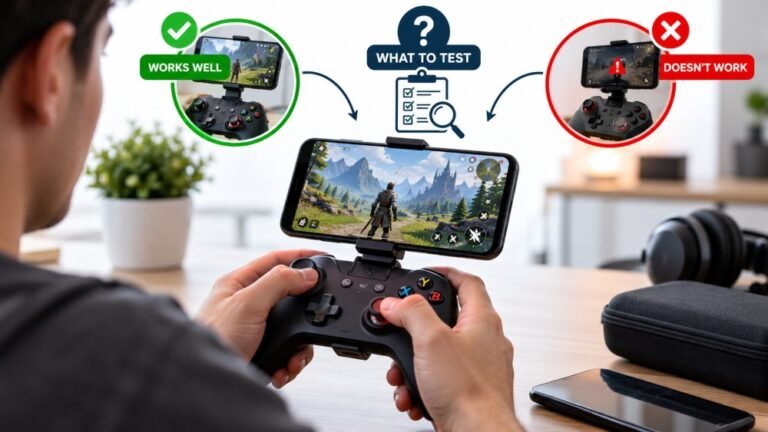
Playing Mobile Games With A Controller: What Works, What Doesn’t, And What To Test Before You Spend
You paired the controller, the light went solid, your phone said "Connected," and then the game did absolutely…

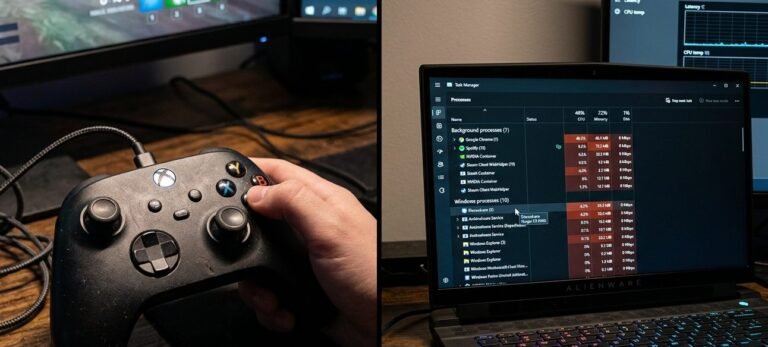
Bought the Xbox Wireless Adapter for my PC to get better connection than Bluetooth. The light on the adapter just keeps flashing and the controller's Xbox button keeps flashing too. They never connect. Windows shows the adapter in Device Manager. Ideas?
Both lights flashing means both are searching but not pairing. Press the adapter's pair button until it flashes, then hold the controller's pair button until its light flashes fast, within about 20 seconds. Update the adapter driver and use a front port or an extension for line of sight.

Both lights flashing means each device is looking for the other but they have not paired yet. The adapter needs to be paired with the controller once, just like a console.
Pairing is a two-step handshake that has to overlap. Press the button on the adapter until its light flashes, then within about 20 seconds hold the small pair button on top of the controller until the Xbox button flashes rapidly. When they find each other, both lights go solid.
If that does not work, check three things. The driver: the adapter gets its driver through Windows Update, so make sure Windows is up to date and check Device Manager for any warning on the adapter. The position: the adapter is a small radio; plugged into a rear port behind a metal case it can struggle, so use a front port or a short USB extension so it has line of sight. And the controller: the adapter only works with Xbox controllers that support Xbox Wireless, not PlayStation or most third-party pads.
Once paired, use the connection stability test to confirm the link holds. The adapter is generally steadier than Bluetooth when it is positioned well.
Tested on: Applies to the Xbox Wireless Adapter for Windows with Xbox Wireless Controller Model 1914 on Windows 11. Pairing steps per Xbox support's controller connection guide.
Checked by Liam Davies on . How we verify answers
Low Latency And Input Timing Engineer at Gamepad Tester
Devon is a low latency engineer. On a browser-based latency test the easiest mistake is measuring the wrong thing: network round trips, render queues and browser throttling can all add milliseconds that have nothing to do with the controller. His work is isolating the input path so that what the test reports is the hardware delay, and documenting the conditions under which the reading is trustworthy. On Gamepad Tester he owns the latency test and the input lag topic, and checks any answer that quotes a millisecond figure.
 Calder WrightFront-End Web Architect And Gamepad API Lead
 Elena RostovaHardware Diagnostics Engineer
 Garrett LindsayHardware Reviewer And Input Performance Specialist
 Venom’s Tech (Abhishek)Peripheral Reviewer And Tech Journalist
 Chloe HendersonHall Effect And Thumbstick Analyst
 Thiago AlvesHardware Repair Educator
 Liam DaviesBluetooth And Wireless Test Engineer
 Nadia BrooksEsports Performance Consultant
Each answer is written by the specialist who owns that part of the hardware, tested on a real controller, and checked by a second team member. How we verify answers
Answers are free general guidance from the Gamepad Tester Team and the community. Opening a controller or replacing a thumbstick module can void your warranty, so check the maker's support or warranty first. Battery and soldering work carries a real risk of damage or injury.
Every test runs in your own browser with the Gamepad API. No sign up, no download, and your controller data never leaves your device.
You paired the controller, the light went solid, your phone said "Connected," and then the game did absolutely…
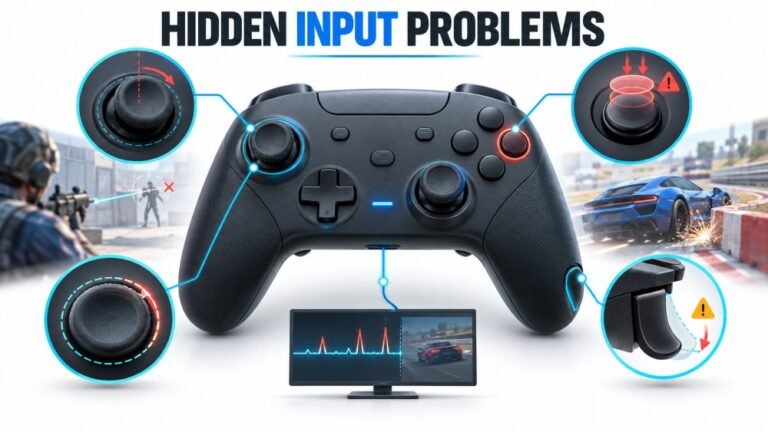
There is a particular kind of bad session that never gets diagnosed. You lose a duel you should have won. Your car…
A shot fired half a second after I pulled the trigger, the same delay I had been chasing for two weeks, faulting…
The newest replies from players and the Gamepad Tester Team.