Small Input Problems That Quietly Ruin Your Game Sessions
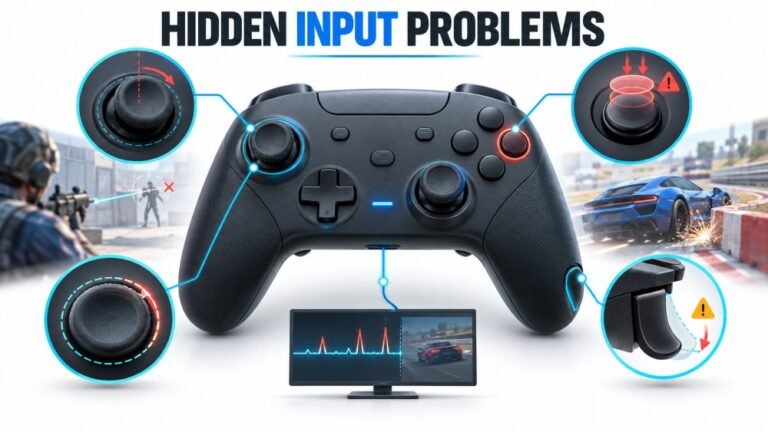
There is a particular kind of bad session that never gets diagnosed. You lose a duel you should have won. Your car…

I've been searching for ages for how to calibrate my PS5 controller and every guide either says go to settings (there's no calibration option on the PS5 that I can find) or tells me to use the Windows game controller panel, which doesn't seem to do anything. Left stick rests at about 0.06 on X on your test. It's not terrible but I can see my character shuffle sideways in some games. Is there an actual way to calibrate a DualSense properly, so it sticks? I've got a PC and a USB-C cable.
The PS5 has no calibration menu, and the Windows panel only affects older DirectInput games. The tool that actually writes a new centre and range to the DualSense is the open-source DualShock Calibration GUI in Chrome or Edge over USB, and changes only stick if you save them permanently.

You have not missed a menu. The PS5 has no stick calibration option, and the Windows Set up USB game controllers panel (joy.cpl) only changes how Windows reports the stick to older DirectInput games. It writes nothing to the controller, so the PS5, Steam, browsers and most modern games never see it.
What does work is the DualShock Calibration GUI, an open-source project at dualshock-tools.github.io. It uses WebHID, a browser feature that lets a page send commands to a device after you grant permission, so it works in Chrome and Edge but not in Firefox or Safari. It talks to the controller over USB and supports official Sony DualShock 4, DualSense and DualSense Edge pads. Two caveats matter. On a DualSense the controller firmware has to be up to date or the calibration options stay unavailable. And any calibration is temporary until you choose to save it permanently, so if you unplug before saving, the controller goes back to how it was. That is a useful safety net.
How far calibration takes you depends on your reading. At 0.06 with a steady value, a centre calibration usually brings it back to around zero. If the value wanders while you watch, that is wear or dirt on the potentiometer, and calibration only sets zero to wherever the stick happened to be at that moment.
Do centre first, then range. Range calibration fixes sticks that stop short of the edge or overshoot in the diagonals, and it is easier to judge once the centre is right. Only use it on a genuine Sony controller; licensed and copy pads use different internals.
Tested on: Applies to DualSense CFI-ZCT1W on Windows 11 with Chrome or Edge over USB-C. Steps checked against the DualShock Calibration GUI project and published walkthroughs of its centre and range wizards.
Checked by Chloe Henderson on . How we verify answers
Calibration And Signal Processing Programmer at Gamepad Tester
Arjun writes the maths between a controller and the screen. A raw axis value is noisy, unscaled and centred imperfectly, so his filters handle the parts that decide whether a test is useful: removing sensor noise without hiding a genuine fault, normalising ranges across controllers that report differently, and plotting the result as a clean graph where real drift is visible and jitter is not mistaken for it. On Gamepad Tester he maintains the calibration maths in the deadzone and drift tests, and explains in answers what a given reading does and does not prove.
 Calder WrightFront-End Web Architect And Gamepad API Lead
 Elena RostovaHardware Diagnostics Engineer
 Garrett LindsayHardware Reviewer And Input Performance Specialist
 Venom’s Tech (Abhishek)Peripheral Reviewer And Tech Journalist
 Chloe HendersonHall Effect And Thumbstick Analyst
 Thiago AlvesHardware Repair Educator
 Devon MillerLow Latency And Input Timing Engineer
 Liam DaviesBluetooth And Wireless Test Engineer
Each answer is written by the specialist who owns that part of the hardware, tested on a real controller, and checked by a second team member. How we verify answers
Answers are free general guidance from the Gamepad Tester Team and the community. Opening a controller or replacing a thumbstick module can void your warranty, so check the maker's support or warranty first. Battery and soldering work carries a real risk of damage or injury.
Every test runs in your own browser with the Gamepad API. No sign up, no download, and your controller data never leaves your device.
There is a particular kind of bad session that never gets diagnosed. You lose a duel you should have won. Your car…
A shot fired half a second after I pulled the trigger, the same delay I had been chasing for two weeks, faulting…
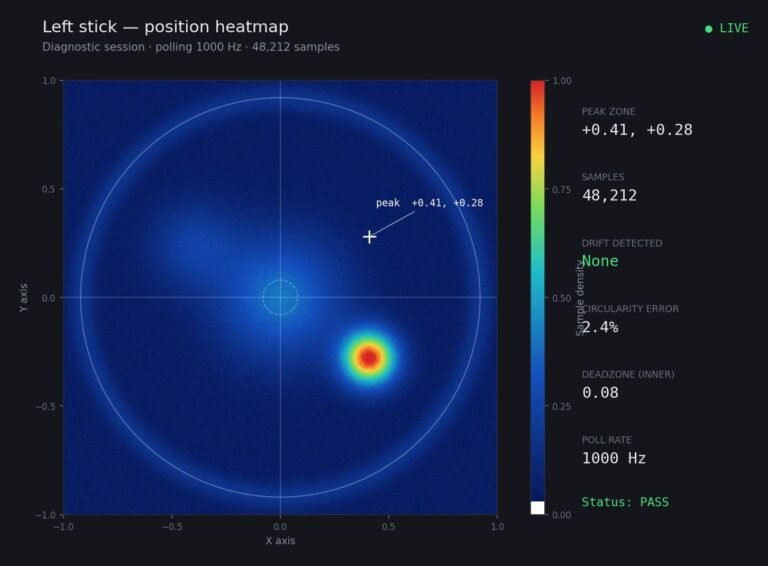
Someone posted a stick drift heatmap in a forum thread asking if their controller was dying: a red and orange blob…
The newest replies from players and the Gamepad Tester Team.