Small Input Problems That Quietly Ruin Your Game Sessions
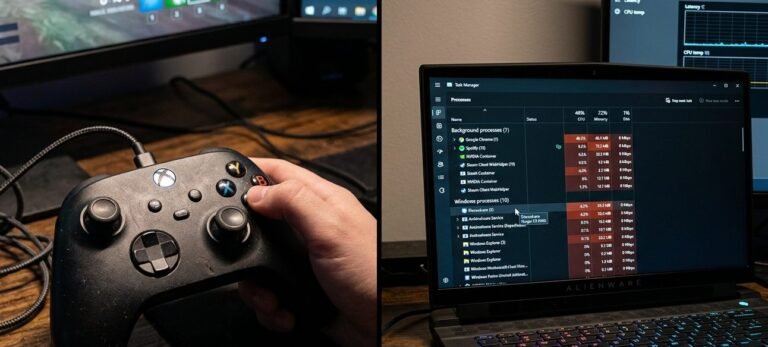
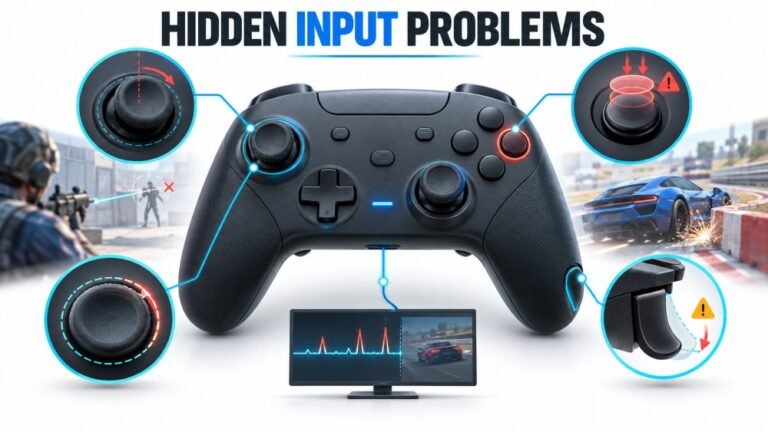
There is a particular kind of bad session that never gets diagnosed. You lose a duel you should have won. Your car…

My Steam Deck's left stick has started to drift a little, the character walks slowly forward. I read there's a calibration option somewhere in settings. Where is it and will it actually fix drift? It's an LCD model, about 2 years old.
Steam Deck has joystick calibration and deadzone settings in its controller settings. Calibration fixes a steady offset; if drift returns within days, the stick is wearing and a replacement stick module, including magnetic options, is the fix.

The Deck does have calibration built in. In Settings, open Controller, then the calibration and advanced settings section. There you can calibrate the joysticks and adjust the deadzone. Follow the on-screen steps with your thumbs off the sticks when asked.
Whether it fixes the drift depends on the cause. If the stick reports a steady wrong centre, calibration fixes it, and it should stay fixed. If the sensor is wearing, calibration only resets the target, and the drift creeps back within hours or days. After two years of regular play, either is possible.
Check it properly afterwards. Our stick drift test works in Desktop Mode when you launch the browser through Steam, or use the stick test screen in Steam's controller settings. With thumbs off, the left stick should rest within about plus or minus 0.02. Check again a few days later without recalibrating.
If drift returns, the stick module is worn. The Deck's sticks are replaceable modules, and replacement kits are widely available, including magnetic Hall effect and TMR modules that avoid this wear in future. It is a well documented repair with a screwdriver and a little patience.
Tested on: Applies to Steam Deck LCD and OLED with current SteamOS. Settings locations per Steam's controller settings; replacement options per published GuliKit Steam Deck module coverage.
Checked by Sarah Jenkins on . How we verify answers
Linux And Input Subsystem Engineer at Gamepad Tester
Lucas works on the Linux input subsystem. He follows how evdev registers a controller, how Steam Input sits on top of it and where the two disagree with the browser's view of the same device, which is the usual reason a pad behaves differently on a Steam Deck or a Linux desktop than on Windows. His testing targets parity: the same controller should produce the same reading on every operating system, and where it does not, the difference should be documented. On Gamepad Tester he handles the Linux and Steam Deck questions.
 Calder WrightFront-End Web Architect And Gamepad API Lead
 Elena RostovaHardware Diagnostics Engineer
 Garrett LindsayHardware Reviewer And Input Performance Specialist
 Venom’s Tech (Abhishek)Peripheral Reviewer And Tech Journalist
 Chloe HendersonHall Effect And Thumbstick Analyst
 Thiago AlvesHardware Repair Educator
 Devon MillerLow Latency And Input Timing Engineer
 Liam DaviesBluetooth And Wireless Test Engineer
Each answer is written by the specialist who owns that part of the hardware, tested on a real controller, and checked by a second team member. How we verify answers
Answers are free general guidance from the Gamepad Tester Team and the community. Opening a controller or replacing a thumbstick module can void your warranty, so check the maker's support or warranty first. Battery and soldering work carries a real risk of damage or injury.
Every test runs in your own browser with the Gamepad API. No sign up, no download, and your controller data never leaves your device.
There is a particular kind of bad session that never gets diagnosed. You lose a duel you should have won. Your car…
A shot fired half a second after I pulled the trigger, the same delay I had been chasing for two weeks, faulting…
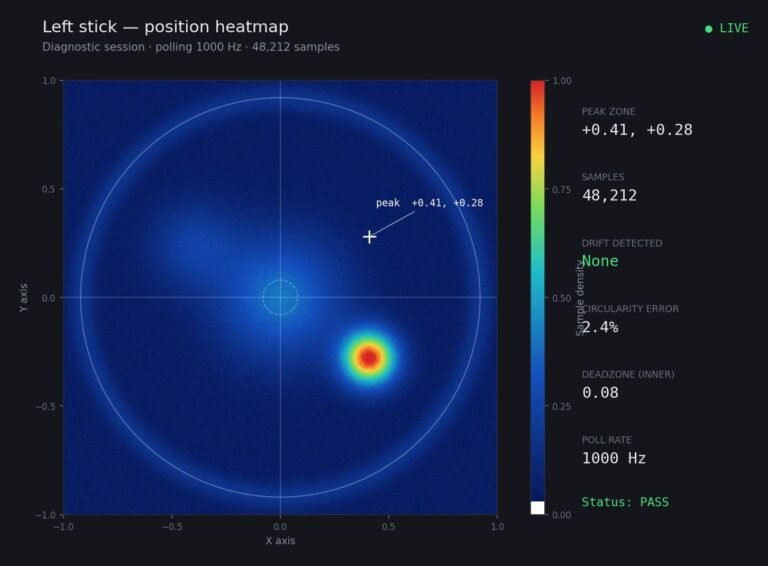
Someone posted a stick drift heatmap in a forum thread asking if their controller was dying: a red and orange blob…
The newest replies from players and the Gamepad Tester Team.